
🚀 A narrow icon launcher bar for Visual Studio, similar to VS Code's Activity Bar






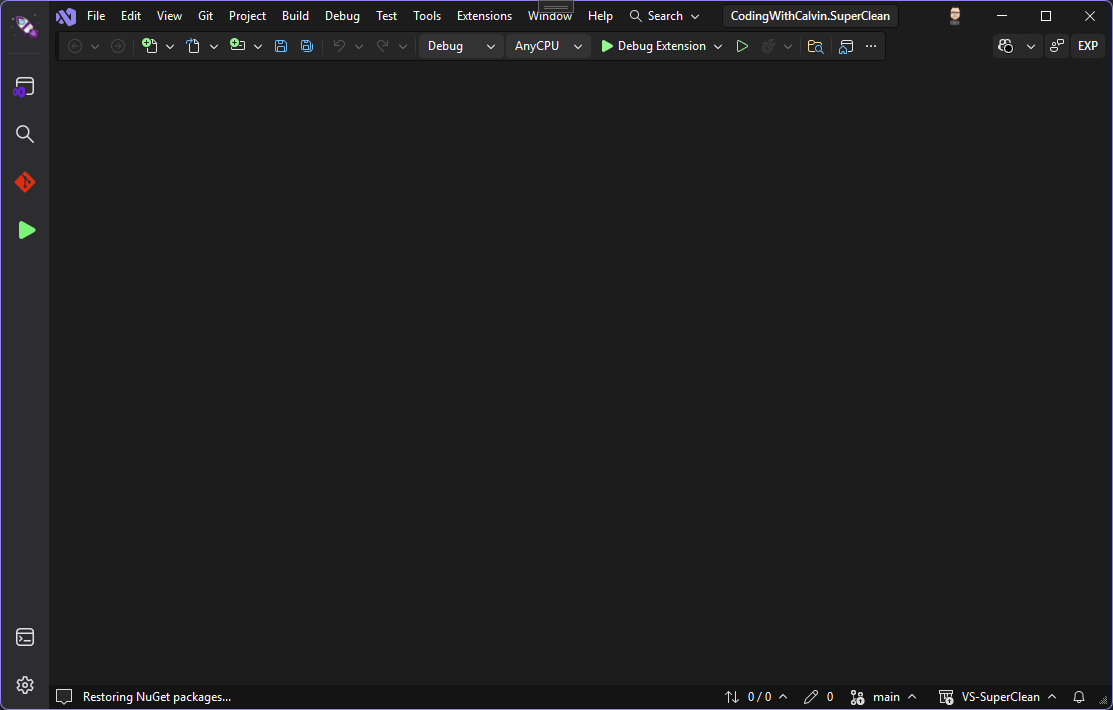
If you've used VS Code or JetBrains IDEs, you're probably familiar with the Activity Bar - a narrow vertical strip of icons that gives you quick access to common tools. LaunchyBar brings that same convenience to Visual Studio!
- 🎯 Quick Access - Launch frequently used tools with a single click
- 🪟 Tool Windows - Toggle tool windows like Solution Explorer, Terminal, and Git Changes (click again to hide)
- 🐞 Smart Debug Button - Automatically switches between Start and Stop based on debugger state
- 🎨 Native Look - Seamlessly integrates with Visual Studio's theme
- Open Visual Studio 2022 or 2026
- Go to Extensions > Manage Extensions
- Search for "LaunchyBar"
- Click Download and restart Visual Studio
Download the latest .vsix file from the Releases page and double-click to install.
- After installation, LaunchyBar automatically appears docked to the left side of Visual Studio
- Click any icon to execute its associated action
- Tool windows (Solution Explorer, Terminal, Git Changes) toggle on each click - click once to show, click again to hide
- The Debug button automatically shows "Start Debugging" or "Stop Debugging" based on the current debugger state
- Enjoy quick access to your favorite tools! 🎉
LaunchyBar comes preconfigured with these items:
Top Section:
- 📂 Solution Explorer
- 🔍 Find in Files
- 🔀 Git Changes
▶️ Debug (Start/Stop)
Bottom Section:
- 💻 Terminal
- ⚙️ Settings
Contributions are welcome! Please feel free to submit a Pull Request.
- Clone the repository
git clone https://github.com/CodingWithCalvin/VS-LaunchyBar.git - Open
src/CodingWithCalvin.VS-LaunchyBar.slnxin Visual Studio 2022 - Build the solution (
Ctrl+Shift+B) - Press
F5to launch the experimental instance - Make your changes and submit a PR
This project is licensed under the MIT License - see the LICENSE file for details.

Made with ❤️ by Coding With Calvin
