




Conventional Commits for VSCode.
This extension is a customized fork of vscode-conventional-commits with the following additions:
- Jira ticket selection: Select Jira tickets from a list (similar to scope selection) or add new ones
- Settings: Manage tickets in
settings.jsonwithconventionalCommits.jiraTickets:"conventionalCommits.jiraTickets": [ { "id": "JIRA-123", "description": "Login feature" }, { "id": "JIRA-456", "description": "User profile" } ]
- Commit format: When a ticket is selected, the message format is
feat: add title (JIRA-123) - New ticket flow: Two-step input (ticket number → optional description) when adding new tickets
- Dedicated staging view: Open with
Cmd+Shift+G(Mac) orCtrl+Shift+G(Windows/Linux), or via the Git Staging icon in the Activity Bar - File-level operations: Stage, Unstage, Discard (revert) individual files
- Hunk-level staging: Stage or unstage specific code blocks within a file
- Bulk actions: Stage All and Unstage All buttons
- Diff view: SourceTree-style diff with line numbers, add/remove highlighting
- Clickable filename: Click the filename in the diff view to open the file
- Extension name: Renamed to "git-tools"
- Type order: Commit types (feat, fix, docs, etc.) are displayed in conventional order instead of alphabetical order when using commitlint config
This extension helps you to fill in commit message according to Conventional Commits.
- Support
commitlint configs. See
Supported Commitlint Rules for details.
- Now supports
commitlint
promptmetadata to display custom descriptions and titles in the VS Code picker.
- Now supports
commitlint
- Support auto commit and push after typing messages. See Commit Workflow for details.
- Support project level scope management.
- Support gitmojis.
- Support VSCode workspaces.

You can access git-tools in several ways:
- Conventional Commits:
Command + Shift + PorCtrl + Shift + P, entergit-tools, and pressEnter. Or click the icon on the Source Control menu. - Stage / Unstage UI:
Cmd+Shift+G(Mac) orCtrl+Shift+G(Windows/Linux), or click the Git Staging icon in the Activity Bar, or run "git-tools: Open Stage / Unstage" from the command palette.

| name | description | default |
|---|---|---|
conventionalCommits.autoCommit |
Control whether the extension should commit files after: forming the message or closing the editor tab. When #git.enableSmartCommit# enabled and #git.smartCommitChanges# was set to all, It allows to commit all changes when there are no staged changes.And set #git.postCommitCommand# to sync to run git.sync after commit. |
true |
conventionalCommits.emojiFormat |
Specify which format will be shown in the gitmoji. |
code |
conventionalCommits.gitmoji |
Control whether the extension should prompt for a gitmoji. |
true |
conventionalCommits.lineBreak |
Specify which word will be treated as line breaks in the body.Blank means no line breaks. |
"" |
conventionalCommits.promptBody |
Control whether the extension should prompt for the body section. |
true |
conventionalCommits.promptFooter |
Control whether the extension should prompt for the footer section. |
true |
conventionalCommits.promptCI |
Control whether the extension should prompt for skipping CI run. | false |
conventionalCommits.promptScopes |
Control whether the extension should prompt for the scope section. |
true |
conventionalCommits.promptJiraTickets |
Control whether the extension should prompt for a Jira ticket. | true |
conventionalCommits.scopes |
Specify available selections in the scope section. |
[] |
conventionalCommits.jiraTickets |
Specify Jira tickets with id and optional description. Format: [{ "id": "JIRA-123", "description": "Ticket description" }] |
[] |
conventionalCommits.showEditor |
Control whether the extension should show the commit message as a text document in a separate tab. | false |
conventionalCommits.showNewVersionNotes |
Control whether the extension should show the new version notes. | true |
conventionalCommits.silentAutoCommit |
Control that auto commit should be silent, without focusing source control panel. | false |
conventionalCommits.editor.keepAfterSave |
Control whether the extension should keep the editor tab open after saving the commit message. | false |
conventionalCommits.storeScopesGlobally |
Control whether the extension should store the defined scopes within your user settings. Uncheck to store in workspace settings. | false |
The recommended workflow automatically add, commit and push files by default.
If you want the extension to only fill in the message, disable autoCommit
configuration.
- Active the extension.
- Type messages.
The extension will automatically add the changed files, perform the commit and push the commit to remote.
- Enable
Settings > conventionalCommits.autoCommitconfiguration of the extension. The extension enablesSettings > conventionalCommits.autoCommitby default. - Enable
Settings > git.enableSmartCommitand setSettings > git.smartCommitChangestoallto commit all changes when there are no staged changes. - Set
Settings > git.postCommitCommandtosyncto rungit.syncafter commit.
Supported Commitlint Rules
-
body-full-stop -
body-leading-blank -
body-max-length -
body-max-line-length -
body-min-length -
footer-leading-blank -
footer-max-length -
footer-max-line-length -
footer-min-length -
header-case -
header-full-stop -
header-max-length -
header-min-length -
references-empty -
scope-enum -
scope-case -
scope-empty -
scope-max-length -
scope-min-length -
subject-case -
subject-empty -
subject-full-stop -
subject-max-length -
subject-min-length -
type-enum -
type-case -
type-empty -
type-max-length -
type-min-length -
signed-off-by
Q: How do I add a line break in messages?
A: Set lineBreak configuration to \n. When you're typing, enter \n as
a line break.
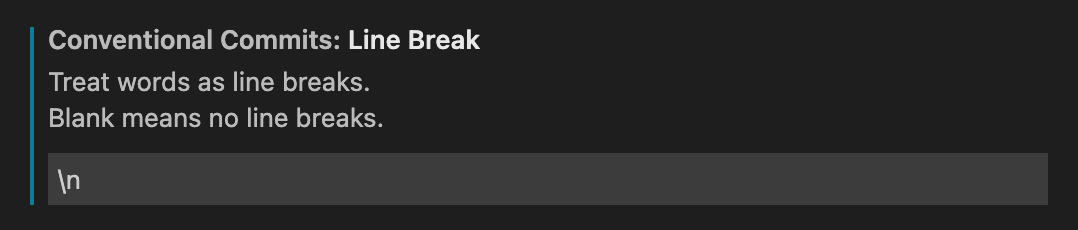
Or \\n in JSON format.

Q: How do I resolve repo not found error?
A: See issue discussion #15.
Q: How do I use commitlint in showEditor mode?
A: The extension - vscode-commitlint will helpful!
- Switch to the VSCode
OUTPUTtab, selectgit-tools. - Copy all the output. Before sharing it, make sure you have removed all private information.

- The vscode task needs to install the extension - vscode-tsl-problem-matcher.
- The effect of code changes needs to reactivate the extension. Just restart the task.
Become a financial contributor and help us sustain our community. [Contribute]

Support this project with your organization. Your logo will show up here with a link to your website. [Contribute]
